Introduction to EC2 on AWS: Instances, SSH, and Security Group

In this blog, we’ll get to know EC2, instances and their types, security measures like SSH access and security groups, and some practices for secure access. This is a continuation of previous blog on AWS.
Elastic Compute Cloud (EC2) Introduction
AWS offers a variety of services which are used in the industries. We will learn more about those important services as we go along in the blog.
For now, let us start with EC2 Service of AWS, which is one of the most popular services that AWS offers.
To understand it, let's take an example. Suppose we are building an application; we use localhost to run the application on our laptop which will run only on your local machine. Now if we want to deploy it on the internet so that anyone can visit your app from the URL, we need some sort of hardware facility that has a public IP address and is present on the cloud.
Now how can you do that? For this AWS provides a web service which has a public IP address and is kept in a cloud is called EC2 (Elastic Compute Cloud). It is a virtual computer which you take on rent that can be used to run applications, store data, and more.
Instance
The virtual machine (EC2) that we launch is called an Instance. To make it simple, think of an instance as a computer. Each time you create an EC2 Instance, a virtual machine (computer) is started on the server for you to use.
An instance runs an operating system (like Linux or Windows) and can be configured with different amounts of CPU, memory, and storage. It allows you to customize all these and run applications as if it were a physical machine.
Instance Types
Different types of EC2 instances can be used that are optimized for different use cases. More about this here.
Some of EC2 instance types are:
General Purpose Instances
Compute Optimized Instances
Memory Optimized Instances
Storage Optimized Instances
Accelerated Computing Instances
Click here to know more details about Instance Types.
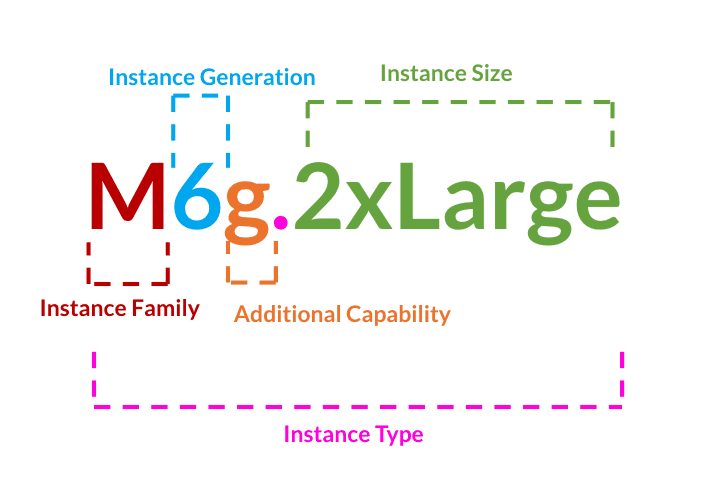
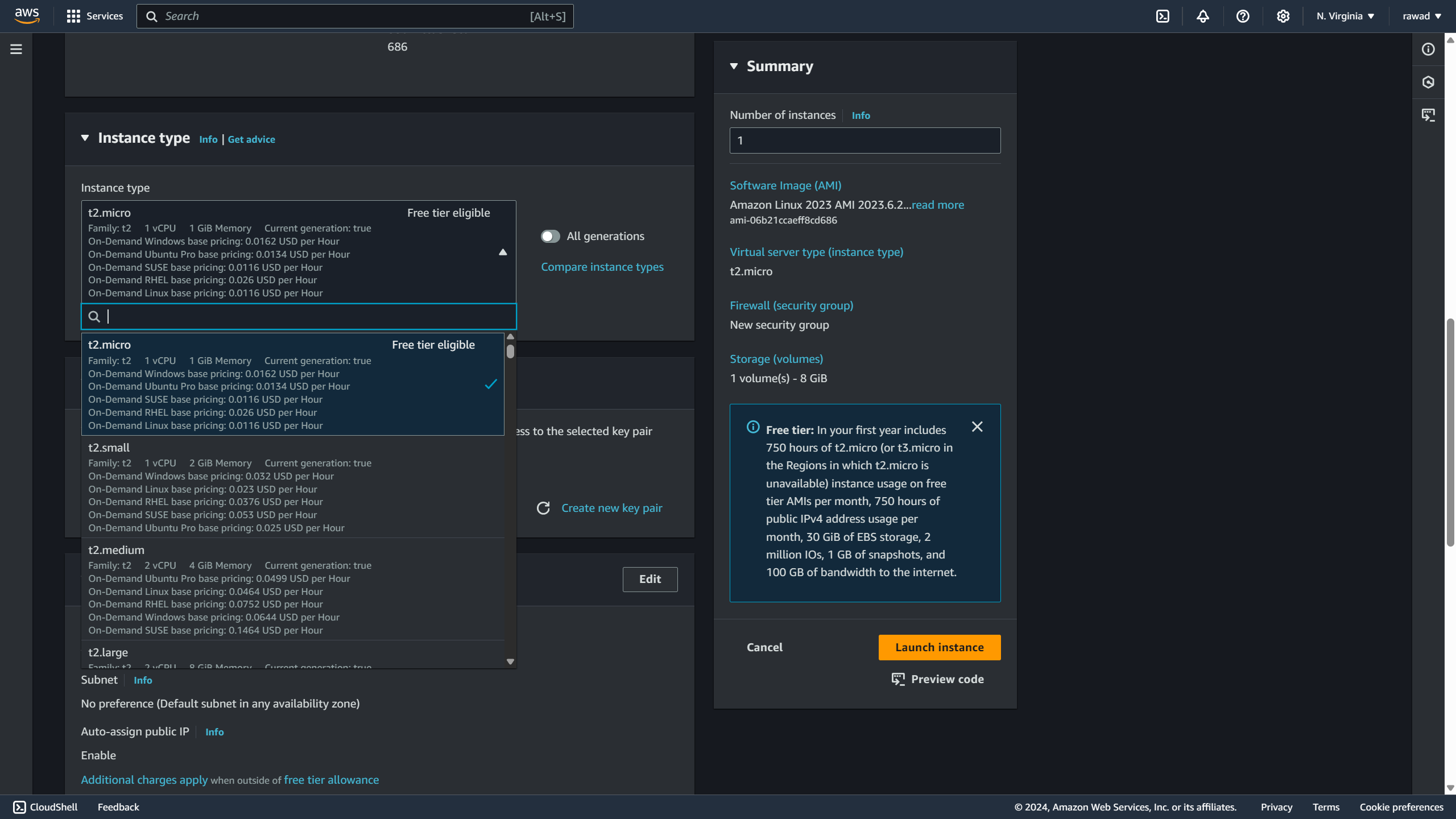
These types define the instance's hardware specs, such as the number of CPUs and RAM. For example, “t2.micro” (a small, general-purpose instance) and “m6g.2xLarge” (a more powerful instance). The image above shows the naming convention of Instances.
Security Groups
A Security Group is a set of rules that manage the traffic allowed to and from your EC2 instances. Think of it as a firewall that decides which traffic is permitted based on the IP address, port, and protocol.
A Security Group acts as an extra layer of protection (firewall) for EC2 instances. It handles important tasks like controlling access to ports, managing authorized IP ranges (IPv4 and IPv6), and overseeing inbound and outbound network traffic (more on this later). This ensures that only the IP addresses of authorized machines can access the EC2 instance.

Inbound Traffic
Inbound Traffic sets which traffic is allowed to come from outside source to your EC2. This could be a user accessing a website, a remote server connecting to a database, or an API request to an application. Example, suppose you set an inbound rule to allow traffic on Port 22 (SSH), then it will allow traffic only from your IP address (secure remote access for you).
Outbound Traffic
Outbound Traffic sets which traffic is allowed to go outside from your EC2 instance to the world. This could be a server reaching out to an API, a user downloading data from a server, or an application connecting to an external database. Example, suppose your database instance is located somewhere else, and you only accept connections from your EC2 IP address. So no other backend can connect to your database.
Some Classic Ports that are commonly used
22 = SSH (Secure Shell) - log into a Linux instance
21 = FTP (File Transfer Protocol) – upload files into a file share
22 = SFTP (Secure File Transfer Protocol) – upload files using SSH
80 = HTTP – access unsecured websites
443 = HTTPS – access secured websites
3389 = RDP (Remote Desktop Protocol) – log into a Windows instance
SSH (Secure Shell)
Let's assume you rented an EC2 machine on AWS. How can you access that virtual machine?
For this, we use Secure Shell (SSH) on AWS. It allows you to control and access a remote machine using the command line. SSH lets you access the terminal of the EC2 machine from your local laptop, where you can run commands and use the EC2 machine.
When creating the EC2 machine, we need to allow "SSH from anywhere" access in the EC2 security group. This lets us SSH from our laptop. Next, we must download a key-pair ".pem" file and run SSH commands in the same directory as the ".pem" file to ensure a successful SSH connection. Never share a ".pem" file with anyone, as they could use it to access your system.
While connecting to EC2 instance, it is recommended never to enter the Access Key Id and Secret Access Key into an EC2 instance. IT is vulnerable, anyone can get into my EC2 instance then.
Instead, assign an IAM role to the EC2 instance. This IAM role can be configured with specific permissions, such as read-only access to certain AWS resources.
Caution: Terminate the instance that you have created. Otherwise, you might get a bill if you are not in the free tier.
This is the End of this Blog.
In the next Blog, we will learn about EBS Volume, EBS Snapshots, AMI and more. Hope to continue this blog series.
Click here to read the blog on “Intro to AWS: Cloud Overview, Uses, and IAM Basics”


